 Move Preface
Open Preface
Preface
In a typical marketing scenario, Dynamics 365 is used to manage the data of the customer and Spotler Mail+ to send (commercial) mailings and/or newsletters to those customers.
The Spotler Connector ensures that, among other things, contact information is synchronized to Spotler.
About this Manual
This manual explains how this synchronizing is working and explains how to automate processes. Using this you can apply marketing automation in your business.
Where in this manual is spoken about connector, we mean the Spotler Connector.
When we talk about Dynamics 365 as the source system, this also applies to Power Apps. If certain aspects don't work with Power Apps, we will explicitly mention this.
For Power Apps you use the light version of our connector: Spotler Connector for Power Apps.
Who this Manual is For
This manual is written for:
- Marketeers and Salespersons who want to know how the basic sync works and how to do basic actions
Preface
472 words
Move Spotler Hub App
Open Spotler Hub App
Spotler Hub App
Spotler related info and actions will be added to your own Dynamics 365 app by the Spotler Connector solution.
The Spotler Connector solution also adds the Spotler Hub app. This app can be handy for marketeers and/or IT staff to navigate easier to Spotler related info and actions.
⚠️Warning! The have access to the Spotler Hub app you need to have the Spotler User role.
Open Spotler Hub
You can open the Spotler Hub App when you have logged into Dynamics 365.
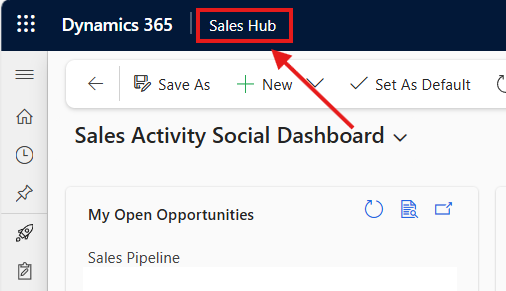
- Using the app switch app button in the upper left when you have your Dynamics 365 open.
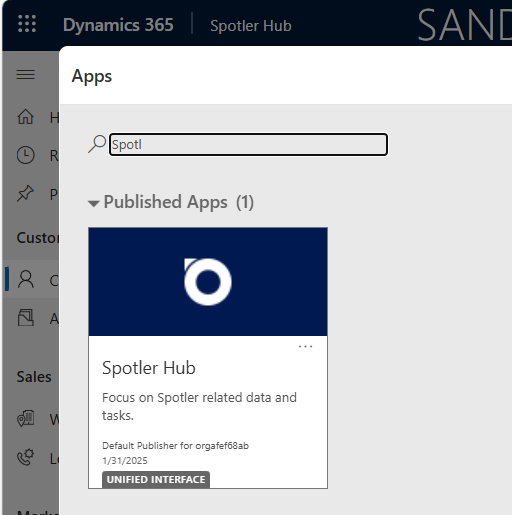
- Click the Spotler Hub app button to open it.
Spotler Hub App
When the Spotler Hub app is open you use the left navigation menu to go to the different sections.
![SpotlerHubApp-MainAppMenu.png]
Spotler Hub App
144 words
Move Sync Contacts
Open Sync Contacts
Synchronize Contacts
Keeping your contacts up to date shouldn’t require manual exports or imports. That’s exactly what the Spotler Connector fixes — it keeps contact data in Dynamics 365 and Spotler synchronized automatically.
The Spotler Connector keeps your contact lists in sync between Dynamics 365 and Spotler. So when a customer updates their info in your CRM, it’s reflected in Spotler — and vice versa if you choose.
That means:
- No more CSV exports
- No more outdated email lists
- Always the right data for your marketing campaigns
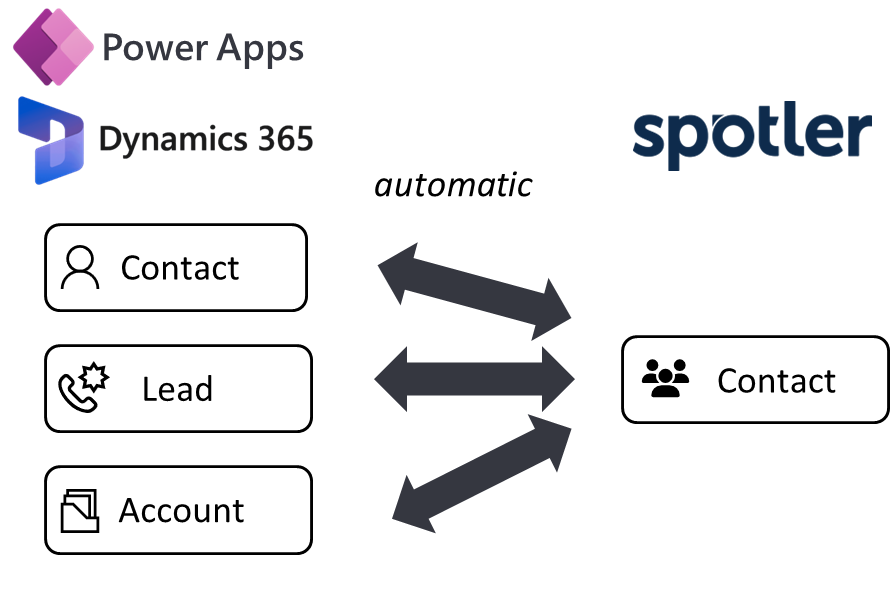
The connector supports these record types in Dynamics 365:
- Contact (🇳🇱 Contactpersoon)
- Lead (🇳🇱 Potentiele Klant)
- Account
Sync Contacts
1,227 words
Move Sync Subscriptions
Open Sync Subscriptions
Synchronize Subscriptions
The connector keeps subscription preferences in sync between Dynamics 365 and Spotler.
Subscriptions in Spotler are called Permissions — flags on a contact that indicate which mailings a contact has opted into. By default, permissions sync bidirectionally.
Spotler Permission Table
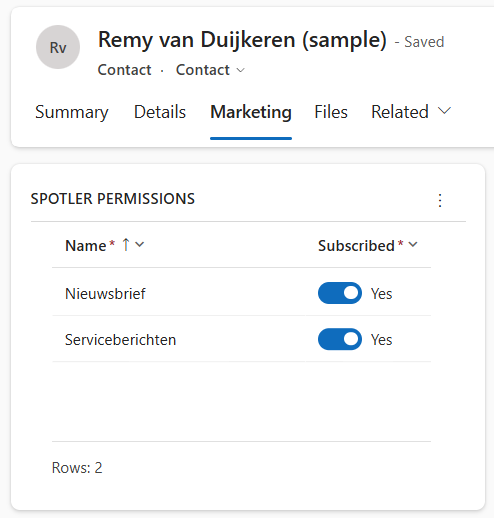
The Spotler Permission table is added to Dynamics 365 by the connector solution. Each row represents one subscription for a contact, account, or lead:
- Name — the permission name, matching the corresponding permission in Spotler
- Subscribed — Yes (opted in) or No (opted out)
When a cont
Sync Subscriptions
536 words
Move New Subscribers
Open New Subscribers
New Subscribers
New subscribers in Spotler can be added to Dynamics 365 as Contact or Lead (or Membership Entry for iFunds Engage 365).
For example, if you have a subscription form in Spotler, where new leads can leave their info, like their name and email address.
The connector makes it possible to add these new subscribers into Dynamics 365!
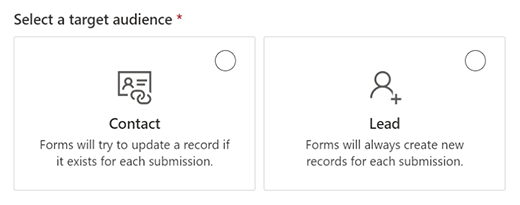
You specify if you want to create a Lead or Contact in Dynamics 365. Each has their own default strategy to add it to Dynamics 365:
- Lead: Each new contact in Spotler, creates a new record, even if the same email address is used.
- Contact: If a record with the same email address already exists, it’s updated. No duplicate contact is created if the same email address is used.
💡Tip: You can also have a custom strategy, like other columns for deduplication!
Do you use a Source column to specify the m
New Subscribers
281 words
Move Sync Marketing Lists
Open Sync Marketing Lists
Synchronize Marketing Lists
In Dynamics 365, you usually have way more data than in your Spotler account. This is partly because Dynamics 365 already stores a lot of data on its own, and partly because it acts as a hub, pulling in data from other connected systems. This extra data lets you create more detailed segmentations in Dynamics 365.
You don’t need to sync all this data into Spotler to send relevant marketing messages.
You can create a Marketing List, where you select members using filters on your data in Dynamics 365. For example your top 100 customers based on sales in the last 6 months or all customer who did a purchase in the last month.
⚠️Warning! Marketing Lists are only available when you have a Dynamics 365 Sales license. Power App license doesn't contain Marketing Lists! See Add/Remove from List for an alternative way of syncing.
Using the connector, you can synchronize this Marketing List to Spotler as an [Dynamic List](https://he
Sync Marketing Lists
1,210 words
Move Anonymizing / GDPR
Open Anonymizing / GDPR
Anonymizing / GDPR
What does anonymizing mean?
When a contact is anonymized in Spotler, all personal data stored in Spotler for that contact is erased.
The contact record itself stays in the system (Spotler keeps it for internal tracking), but all identifying information — name, email address, phone number, and all custom fields — is wiped. The contact can no longer receive emails or be targeted in campaigns. It can not be found anymore.
⚠️Warning! Anonymizing is irreversible. Once a contact is anonymized in Spotler, that data is gone.
Automatic anonymization
The connector can anonymize a contact in Spotler automatically based on conditions i
Anonymizing / GDPR
724 words
Move Bounces
Open Bounces
Bounces
✍️ DRAFT : IN PROGRESS
Contact status:
- Active = Current contact base
- Inactive = Bounces and unsubscribe
Status:
- Active : Static, only exist in a static list, you can't select/filter them in a dynamic list (unless you reference the static list directly)
- Active: Dynamic, exist overall, can be selected and filtered using dynamic lists
- Inactive: Soft bounce (4x), can't deliver the email at this time, already tried 4x. If Soft bounce but retries <4x it is still Active.
- Inactive: Hard bounce (1x), can't deliver the email (email doesn't exist or is wrong)
- Inactive: Opt-out, Unsubscribed of everything
- Inactive: Permanent, explicit set to don't send any emails
How to solve bounces?
Change the email-address, the contact will be activated again.
Best practice: when hard bounce then send an internal notification (a task or email) to correct the email address

This means your sales team can see engagement history without leaving the CRM, and marketers can measure campaign impact against the contacts and accounts they care about.
💡 Marketing Interactions require the Interactions feature to be enabled on your organization. Contact AutomateValue if you do not see these records.
Marketing Interactions
1,046 words
Move Engagement in Timeline
Open Engagement in Timeline
Engagement in Timeline
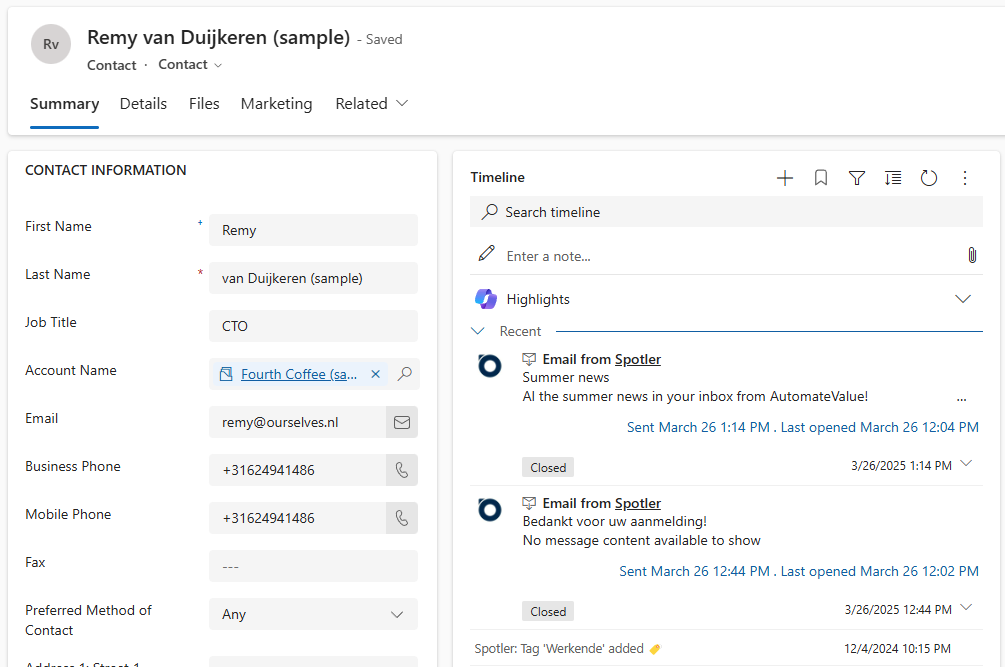
The Dynamics 365 Timeline on a contact, lead, or account is where your team tracks the history of every interaction with that person or company.
The Spotler Connector extends that timeline with Spotler engagement data — so instead of only seeing calls, meetings, and notes, your team also sees which emails were sent, whether they were opened or clicked, when an automation started, and when tags or scores changed in Spotler.
Everything stays in one place. No switching between systems to understand where a contact stands.
Engagement in Timeline
731 words
Move Spotler Jobs
Open Spotler Jobs
Spotler Jobs
Spotler Jobs (🇳🇱 Spotler Taken) are the core of the connector. They are being used to give a command to the connector to execute a task.
The connector uses Jobs to execute operations in Spotler, but you can also create them yourself. You can create Jobs manual in the UI but also create them in Processes or Workflows/(Cloud)Flows to customize and extend Dynamics 365.
You can use Spotler Jobs in Workflows, Business Process Flows, Power Automate and Plugins to fully automate actions in Spotler.
View Spotler Jobs
Spotler Jobs are often run for a Contact, Lead or Account. Also Marketing Lists can have Spotler Jobs.
When you have one of these records open, you can view Spotler Jobs under Related > Spotler Jobs.
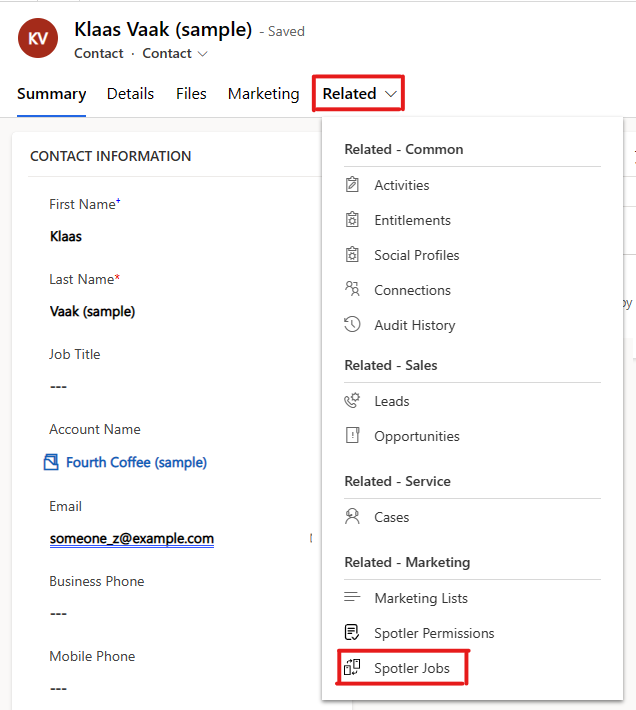
By clicking on Spotler Jobs a list will open with all the related Spotler Jobs with their statu
Spotler Jobs
768 words
Move Tagging & Scoring
Open Tagging & Scoring
Tagging & Scoring
Spotler supports Tagging & Scoring. You can use this to segment your contacts and to determine the value of your contacts. This way you can send more targeted and relevant messages to your contacts.
Tagging contacts
Tags can be set yourself and can be applied for all kinds of reasons. Usually the purpose of tagging is to capture a phase or interest that a contact is in. By grouping contacts with the same tags, you create relevant segments (using Dynamic Lists). You make subsequent marketing campaigns for these segments.
Add Tag
To add a Tag from Dynamics 365, we create a Spotler Job with the operation Add Tag.
Select the Customer (=Account/Contact) or a Lead for which you want to add the tag.
Fill in the tag you want
Tagging & Scoring
691 words
Move Trigger Automations
Open Trigger Automations
Trigger Automations
Spotler has the Automations module and the older Campaign module. With these modules it is possible to send 1-on-1 mails based on certain changes, fully automated. In this way you can create full customer journeys.
With SpotlerAutomate you can also trigger these Automations (and Campaigns) from within Dynamics 365. Consider, for example, a welcome process for new customers, an e-mail with a brochure or an automatic 'customer lifecycle campaign' that is relevant to the recipient.
New Automation
An Automation needs to be [created in Spotler](https://mailplus.spotler.help/hc/en-u
Trigger Automations
822 words
Move Trigger Campaigns
Open Trigger Campaigns
Trigger Campaigns
Spotler has the Automations module and the older Campaign module. With these modules it is possible to send 1-on-1 mails based on certain changes, fully automated. In this way you can create full customer journeys.
With SpotlerAutomate you can also trigger these Campaigns (and Automations) from within Dynamics 365. Consider, for example, a welcome process for new customers, an e-mail with a brochure or an automatic 'customer lifecycle campaign' that is relevant to the recipient.
⚠️Warning! Campaigns is deprecated in Spotler. Use the more powerful Automations.
New Campaign
A Campaign needs to be cr
Trigger Campaigns
347 words
Move Add/Remove from Audience
Open Add/Remove from Audience
Add/Remove from Audience
In Dynamics 365 or Power Apps, you usually have way more data than in your Spotler account. This extra data lets you create more detailed segmentations in Dynamics 365 or Power Apps.
You don’t need to sync all this data into Spotler to send relevant marketing messages.
Preferable you would use Marketing Lists to synchronize these segmentations into Spotler, see Sync Marketing Lists.
But Marketing Lists are not available in Power Apps, so this chapter describes an alternative way of creating these segmentations, as Dynamic Lists in Spotler.
For each Customer or Lead you can Add To or Remove it From a Dynamic List in Spotler, also called an Audience, using the Spotler Connector.
⚠️Warning! This feature is only available in Spotler Mail+ Automation and eCommerce, not for Spotler Mail+ Professional.
You can then access these [List
Add/Remove from Audience
384 words
Move Set/Clear Contact Field
Open Set/Clear Contact Field
Set / Clear Contact Field
Overview
The Set Contact Field and Clear Contact Field operations let you push an explicit value to any Spotler contact field directly from Dynamics 365, without going through the normal Contact Sync.
This is useful for fields that cannot be mapped (computed values, order history, aggregates) or when you need to write a value once without maintaining a permanent sync.
Setting a Field Value
Create a Spotler Job with the Set Contact Field operation. Select the customer or lead, enter the Spotler Field Name, and enter the Field Value.
The field name must exist in Spotler. You can use either the internal Spotler field name (e.g. lastorderdate) or the display name (e.g. Last Order Date). If the display name matches more than one field, the job fails with a validation error asking you to use the exact internal name instead.
Type coercion: The value is converted to the field's expected type before sending to Spotler. For example, a da
Set/Clear Contact Field
421 words
Move Website Visitors
Open Website Visitors
🚀NEW FEATURE : COMING
Website Visitors
✍️ DRAFT : IN PROGRESS
Spotler Leads discovers companies that visit your website, using IP Lookup and Web Tracking. Very valuable information for B2B companies.
The Spotler Connector can synchronize these Website Visitors, including the web pages they view, into Dynamics 365 CRM. Enriching existing customers and creating new leads.
⚠️Warning! This feature only works when Spotler Leads (GatorLeads) is enabled.
View Website Visitors
View List, Hot List, My List, Focused View
View Details
View Visits
Auto-matching existing Customers
Promote to Lead or Customer
Lead Rating, Status & Type
Website Visitors
102 words
Move Setup
Setup
304 words
Move Database Fields
Open Database Fields
Database Fields
When you go to the profile of a contact in Spotler, it contains a number of fields with information about the contact.
These are database fields and can be altered.
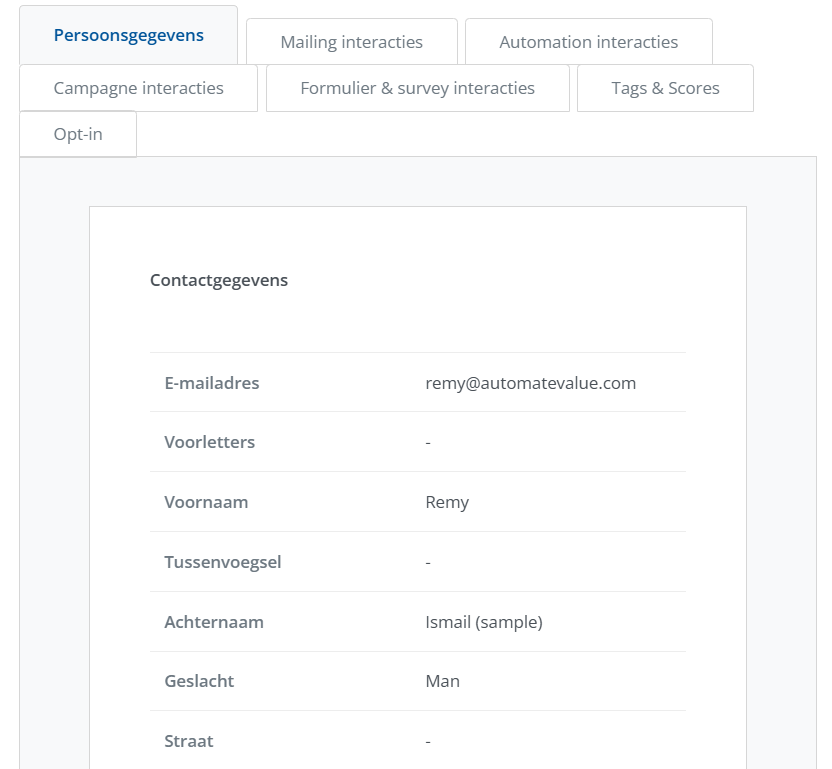
How to manage them
Do you need extra database fields in your account, because you want to collect more data with your forms? Or would you like to edit database fields? As the owner of an account, you have an overview of the database fields, and you can add and edit them.
ℹ️ Info: Only the Owner can alter fields.
See Database fields – Spotler Mail+ Help Center
Fields that you don't need are best to make them not visible, so that they don't clutter your profile.
⚠️Warning! Fields that or not Visible are also not seen be the Spotler Connector!
You can move fields up and down and rename them. When renaming fi
Database Fields
354 words
Move Mapping
Open Mapping
Mapping
Contact details, among other things, are synced between Dynamics 365 and Spotler. A mapping describes which fields of Dynamics 365 maps with the database fields in Spotler.
We will configure a simple default mapping and email the initial configuration of the mapping in an Excel document.
The mapping is stored in the AutomateValue Connector Platform and managed by AutomateValue. Changes can be requested by email (support@automatevalue.com).
Think about the fields do you want to map between both systems and let us know. Often it is useful to have a session with each other about what is possible and which fields you want to synchronize to Spotler.
Please note that fields may not be more than one level deep. For example, fields from Account can be included in the Contact synchronization, because that is one level (Contact->Account). It is also useful to think about which entities need to be synchronized: only Contact or Contact and Lead? Are all contacts allowed t
Mapping
472 words
Move Tables
Open Tables
Tables
The Spotler Connector tries to use as much is possible the existing tables and columns in Dynamics 365 to store data. In this way, when you remove the Connector from your environment, you don't lose this data.
But for some functionality we added a couple of tables and columns.
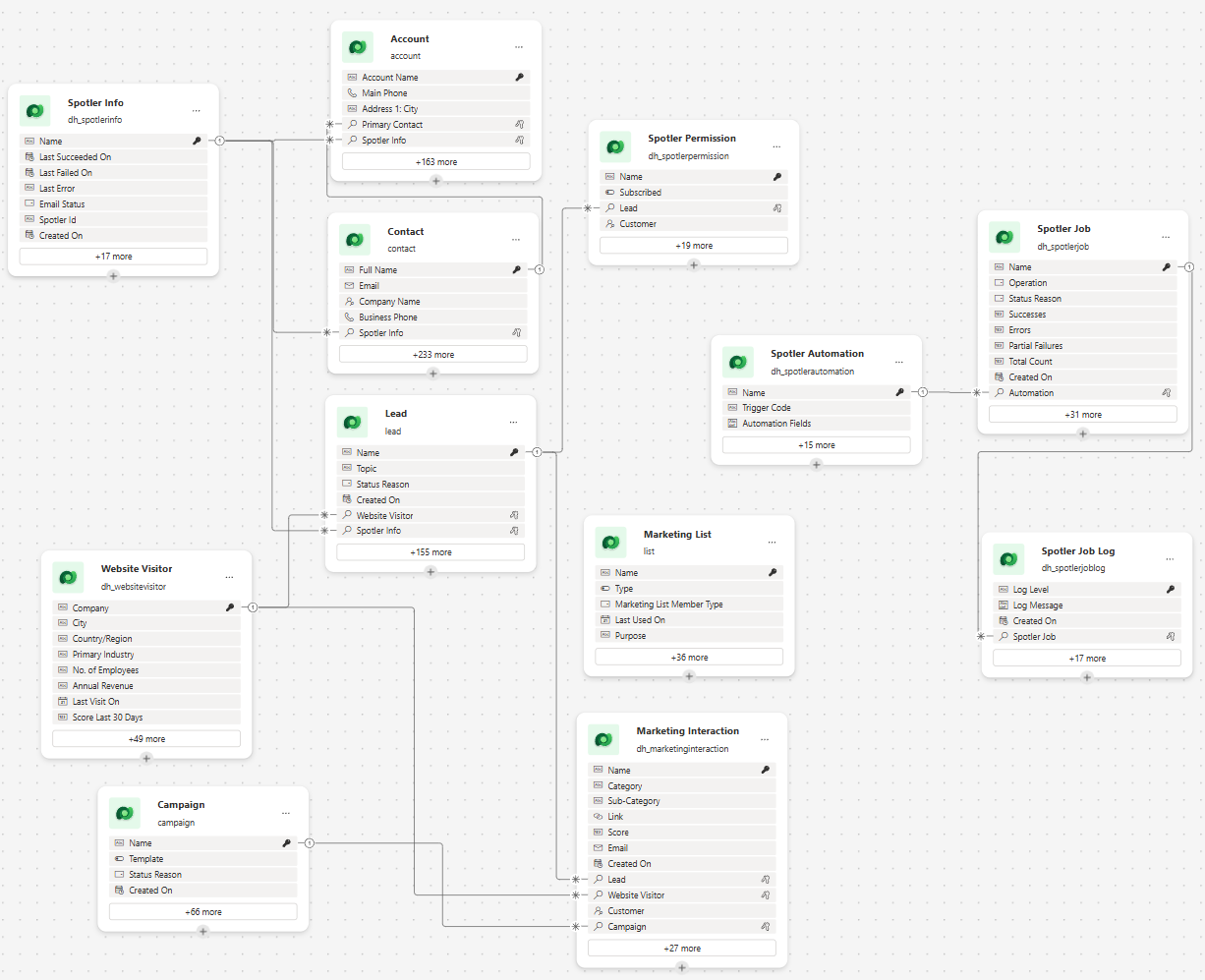
Added Tables
Spotler Info: Information about the synchronization to Spotler, like the last status and if it is active or inactive.
Spotler Permission: Permission for which a Customer or Lead can (un)subscribe for.
Spotler Job (Log): Jobs for executing operations by the Spotler Connector.
Spotler Automation: Contains the trigger codes of automations and campaigns in Spotler. Used to lookup in a Spotler Job.
Marketing Interaction: Interactions related to marketing, like Website Visits, Email Opened or Email Clicked.
Website Visitor: Tracked Website Visitors than can be promoted t
Tables
316 words
Move Security Roles
Open Security Roles
Security Roles
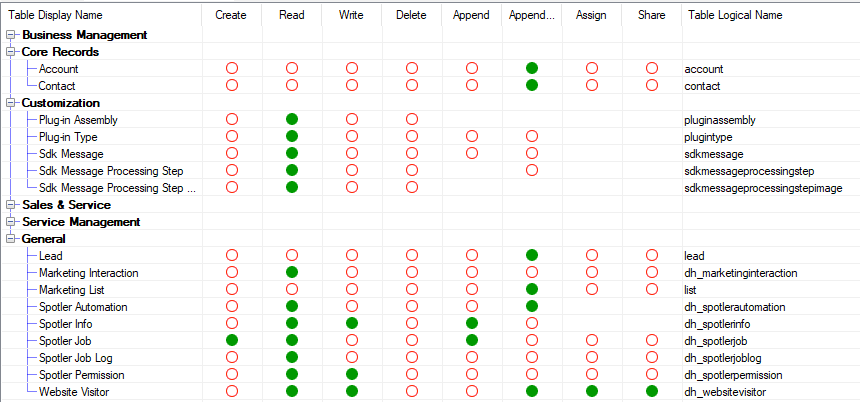
The Spotler Connector installs two security roles into Dynamics 365:
- Spotler User
- Spotler Service
Spotler User
This Security Role should be given to all users that work with your Dynamics 365 app.
It will allows to View the added Tables by the Spotler Connector and make it possible to Edit Spotler Permissions.
It also gives access to the Spotler Hub App.
Spotler Service
This Security Role contains the minimal permissions that the installed Application User of the Spotler Connector needs to have to do the synchronization.
Often these minimal permissions are not enough. For example, you can make complex queries for dynamic Marketing Lists which touches all kind of Tables.
So, the advice would be to assign the System Administrator role to the Application User.
 of a new Contact, Lead or Account that is created in Dynamics 365.
permissions
The permissions environment variable defines which Permissions are being added to a new Contact, Lead or Account.
It auto populates the Permission subgrid will all the possible Permissions, so that a user can directly flag them them when they are creating a new contact, lead or account.
The value needs to be a semicolon separated string of permissions that match the permissions in Spotler. For example: Newsletter;Productinfo;Servicenotifications;
⚠️ Warning: This setting only applies to newly created Contact, Leads or Accounts created in Dynamics 365. If a new contact is created in Spotler then this setting doesn't have any effect!
The Spotler connector will daily update this environment variable with the latest permissions defined in Spotler, so you don'
Environment Variables
384 words
Move Configure Contact Sync
Open Configure Contact Sync
Configure Contact Sync
The connector syncs a contact from Dynamics 365 or Power App when a Spotler Job with the operation Sync Contact is created. This is the trigger for the connector to start doing its work.
You can create a Spotler Job yourself, every time you make a change to a contact, but that would be cumbersome.
Workflows
The connector installed a couple of Workflows that will trigger when an Account, Contact or Lead is created or changed and will create a Spotler Job:
Account WF01 - Create Spotler JobContact WF01 - Create Spotler JobLead WF01 - Create Spotler JobSpotler Permissions WF01 - Create Spotler Job
These Workflows can be tweaked to your liking, or even completely deactivated, if you wish to build the logic in another way, like [
Configure Contact Sync
508 words
Move Customizations
Open Customizations
Customizations
✍️ DRAFT : IN PROGRESS
Auto populating Permissions for new Accounts/Contacts/Leads
When a new Account, Contact or Lead is created in CRM a background process will create Spotler Permissions (1-2sec). Which Permissions will be created can be configured in two Environment Variables:
- Spotler Permissions (dh_spotlerpermissions)
Holds a semicolon (;) separated string with the Permissions that will be created. The connector will keep this in sync with Spotler.
To disable the auto-creation of permissions add a Current Value with a semicolon
Customizations
456 words
Move Troubleshooting
Open Troubleshooting
Troubleshooting
Spotler Job stays on status 'Queued'
Problem
Spotler Jobs have initial the status 'Queued'. This status should change to 'In Progress' and end in the status 'Completed' (or 'Failed').
Often these status changes happen fast, but there can be a delay in processing. Normally most Spotler Jobs are processed within 3 hours.
If the status after a day is still 'Queued' there could be a problem in processing.
Possible Cause
Go to the waiting Spotler Job and click on Related > Background Processes. Does it contain a failing System Job?
If there is a failing System Job then open it. Go to the Details tab, which contains the error message.
If the error message contains 'A SASKey has not been configured for ServiceEndpoint SpotlerAutomate' than the SAS Key is missing or not correct.
If there are no failing System Jobs than the connection to
Troubleshooting
221 words