Database Fields
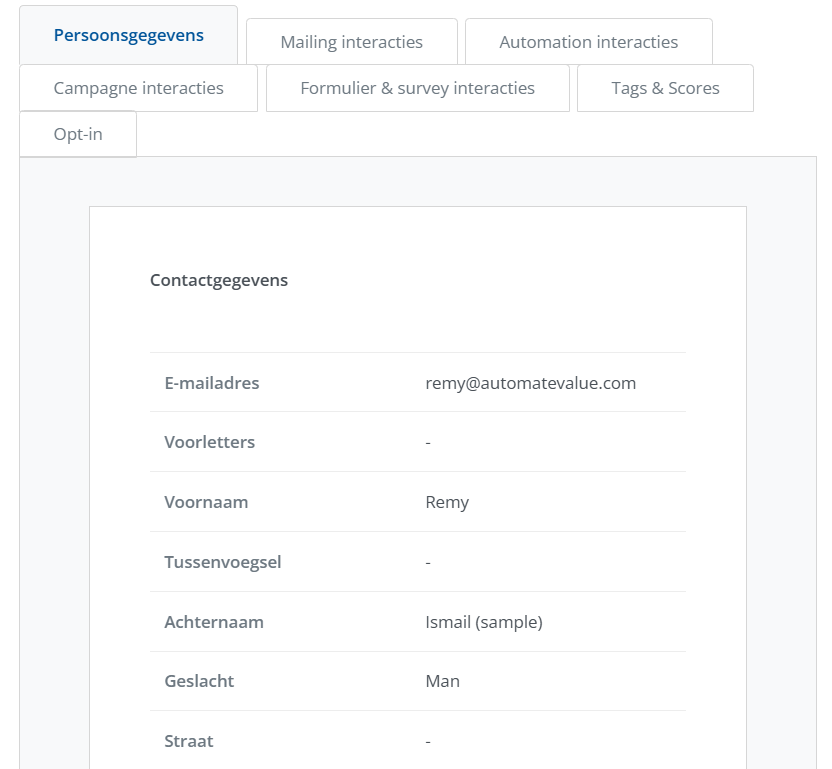
When you go to the profile of a contact in Spotler, it contains a number of fields with information about the contact.
These are database fields and can be altered.
How to manage them
Do you need extra database fields in your account, because you want to collect more data with your forms? Or would you like to edit database fields? As the owner of an account, you have an overview of the database fields, and you can add and edit them.
ℹ️ Info: Only the Owner can alter fields.
See Database fields – Spotler Mail+ Help Center
Fields that you don't need are best to make them not visible, so that they don't clutter your profile.
⚠️Warning! Fields that or not Visible are also not seen be the Spotler Connector!
You can move fields up and down and rename them. When renaming fields, you only rename the Display Name, the underlying database name will stay the same. This is important because the Spotler Connector is mapping to the database name.
There is also an option to Delete data of a field, which can be handy to clean up temporary or old data.
The different types
- Text, anything text or text-like
- List, a list of options that can be selected or unselected
- Birth date and Date, a date (or datetime) which can be used for triggering journeys, like a birthday-gift or first-purchase journey.
- Integer (numeric), a number like age, which can be used to trigger journeys.
- Currency, a value that represents money.
💡Tip: Add a Text field to store the Dynamics 365 Table name, for example External Type or Source Table. The Connector can then fill this field with the text: Account, Contact or Lead.
Special Fields
There are couple of special fields which have an important role:
- Permission, a List field that contains the Spotler Permissions
- External Id, contains the Row Id of the source system, like the CRM Id. For Dynamics 365 this can be the Account-, Contact- or Lead Id.
⚠️Warning! Don't alter these fields in any way and keep them visible!